Contractor Estimate Template User Guide
Find your question, then follow the steps: which tab to open, which cell to type in, and what you should see when it worked. Words in bold are the exact tab, column or button names in the workbook.
Published by PoshJosh LLC · Updated October 27, 2026
About this guide
This guide is for the Estimate-to-Job Tracker, template edition v6.3.2, in Excel (Windows, Mac or Excel for the web) and Google Sheets. The version is in the file name, for example Contractor_Estimate_to_Job_Tracker_TEMPLATE_v6.3.2_BLANK.xlsx.
Color key, on every tab
| Color | What it means |
|---|---|
| Yellow | Inputs. Type here or pick from a dropdown. |
| White | Formulas. They calculate on their own and are protected from accidental typing. |
| Orange | Something on that row needs your attention. The Check column says what. Reminders on Jobs are follow-ups and aren't colored. |
| Grey rows | Outside the template edition's capacity. They don't take entries. |
Your two files. The SAMPLE is filled with a fictional electrical contractor, Brazos Bend Electric, with a price book, 18 jobs and their payments, so you can see every feature working. The BLANK is empty, with no labor roles or price book, ready for your business. Try things in the SAMPLE; keep your real work in the BLANK.
Need help? Message the shop on Etsy. Say which tab and row you were on, what you typed, and what you expected to see.
Sales tax rules depend on the job, contract type and location. The workbook calculates the tax you set up; confirm the right tax basis with your CPA or your state's tax office.
Getting around
The workbook has six tabs along the bottom. A job moves left to right through them: price it, quote it, track it, get paid, and see the totals.
| Tab | What lives there | You type here? |
|---|---|---|
| Start Here | Quick instructions, color key, capacity and notes | No |
| Dashboard | Open quotes, win rate, work in hand, balance due, margin, pipeline and profit by job type | Only the As of date |
| Estimate | Left side: the estimate for one job. Right side (column L onward): Rates & Price Book | Yes |
| Quote | A clean, printable quote built from the Estimate. Your costs and margin never print. | Only the two header lines |
| Jobs | One row per quote sent, from Quoted to Paid: price, dates, actual costs, invoice and balance | Yes |
| Payments | One row per deposit, payment or refund | Yes |
The usual order for one job:
- Build the estimate on Estimate.
- Print or save the Quote as PDF and send it.
- Add the job to Jobs as Quoted.
- When the client accepts, change it to Scheduled, then move it through In Progress, Complete and Invoiced as the work happens.
- Log each payment on Payments. The job's balance updates on Jobs.
- Mark it Paid when the balance reaches zero.
On Jobs, Estimate and Payments, the header rows stay in place as you scroll.
How do I…?
The short path for each common task. The section in the last column has the full steps.
| How do I… | Short path | Section |
|---|---|---|
| Set my labor rates | Estimate → Labor rates (L13 to N15) | First-time setup |
| Set markup, sales tax, deposit and terms | Estimate → Settings (L5 to M10) | First-time setup |
| Add items to my price book | Estimate → Price book → next empty row (rows 19 to 43) | First-time setup |
| Put my company name on the quote | Quote → the two lines at the top (A1 and A2) | First-time setup |
| Price a job | Estimate → header, then a line per labor role or item | Build an estimate |
| Send a quote | Quote → File → Print or Save as PDF | Send the quote |
| Start a new estimate | Overwrite the yellow cells on Estimate after the quote is saved as PDF | Build an estimate |
| Add a job after quoting it | Jobs → next empty row, status Quoted | Track the job |
| Record actual costs | Jobs → Actual labor, Actual material, Other costs | Track the job |
| Log a deposit or payment | Payments → next empty row | Log payments |
| Record a refund | Payments → a negative Amount, Type = Refund | Log payments |
| See who owes me money | Dashboard → Balance due (done jobs), or Jobs → Balance due | Read the Dashboard |
| Fix an orange cell | Read the Check or Reminders cell on that row | When a cell turns orange |
| See one job go from estimate to deposit | SAMPLE → E-2617 → Jobs → Payments → Dashboard | Walk through the SAMPLE |
No match. Try a shorter word, or message the shop on Etsy.
First-time setup
Set up once: your rates, markups and price book on the right side of Estimate, and your company name on Quote. Every estimate reads from them.
Open the right file
- In Excel on Windows or Mac, open Contractor_Estimate_to_Job_Tracker_TEMPLATE_v6.3.2_BLANK.xlsx. For Google Sheets, see Google Sheets edition below.
- If a yellow bar says Protected View, click Enable Editing so the dropdowns work.
- Save it under your own name.
For Excel for the web, upload the file to your OneDrive first, then open it from there.
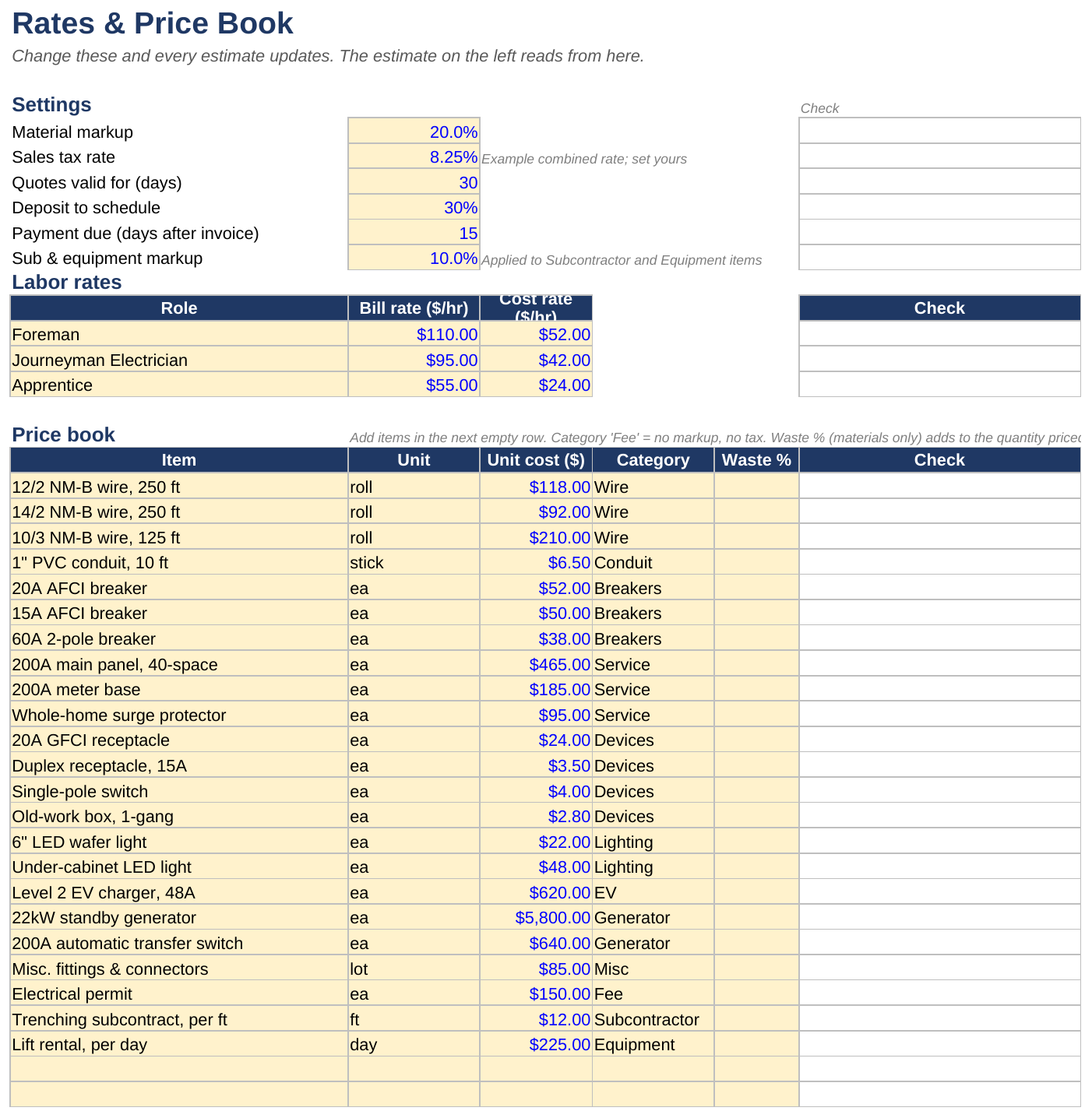
Settings (Estimate, L5 to M10)
| Setting | What to enter | SAMPLE |
|---|---|---|
| Material markup | Markup on material items, 0% to 200% | 20% |
| Sales tax rate | Your combined rate, 0% to 20% (8.25% = 0.0825) | 8.25% |
| Quotes valid for (days) | How long a quote stands, 1 to 365 | 30 |
| Deposit to schedule | Deposit before work is scheduled, 0% to 100% | 30% |
| Payment due (days after invoice) | Your invoice terms, 0 to 365 | 15 |
| Sub & equipment markup | Markup on Subcontractor and Equipment items, 0% to 200% | 10% |
Labor rates (Estimate, L13 to N15)
Enter up to three roles. Each has a bill rate, what the client pays per hour, and a cost rate, what the hour costs you.
| Role (SAMPLE) | Bill rate (/hr)|Costrate(/hr) | |
|---|---|---|
| Foreman | 110 | 52 |
| Journeyman Electrician | 95 | 42 |
| Apprentice | 55 | 24 |
Price book (Estimate, rows 19 to 43)
Add one row per item you price often, up to 25:
| Column | What to enter | Example |
|---|---|---|
| Item | The name that prints on the quote | 20A AFCI breaker |
| Unit | ea, ft, roll, lot, day | ea |
| Unit cost ($) | What it costs you | 52.00 |
| Category | Pick from the list | Breakers |
| Waste % | Extra quantity priced for waste, 0% to 50%; material items only | 10% |
The category decides the markup and tax: material categories get the Material markup; Subcontractor and Equipment get the Sub & equipment markup; Fee passes through at cost, with no markup and no tax.
Your own lists (Estimate, column R)
Rename the six Job types (R5 to R10) and the nine material Item categories (R27 to R35) to fit your trade. Subcontractor, Equipment and Fee, and the status, tax basis and payment lists, are fixed because the formulas depend on them.
Quote header
On Quote, type your company name in A1 and your license number, phone and email in A2. They print at the top of every quote.
What you should see: no orange cells in the Check column (Q) beside your rates and price book.
Build an estimate
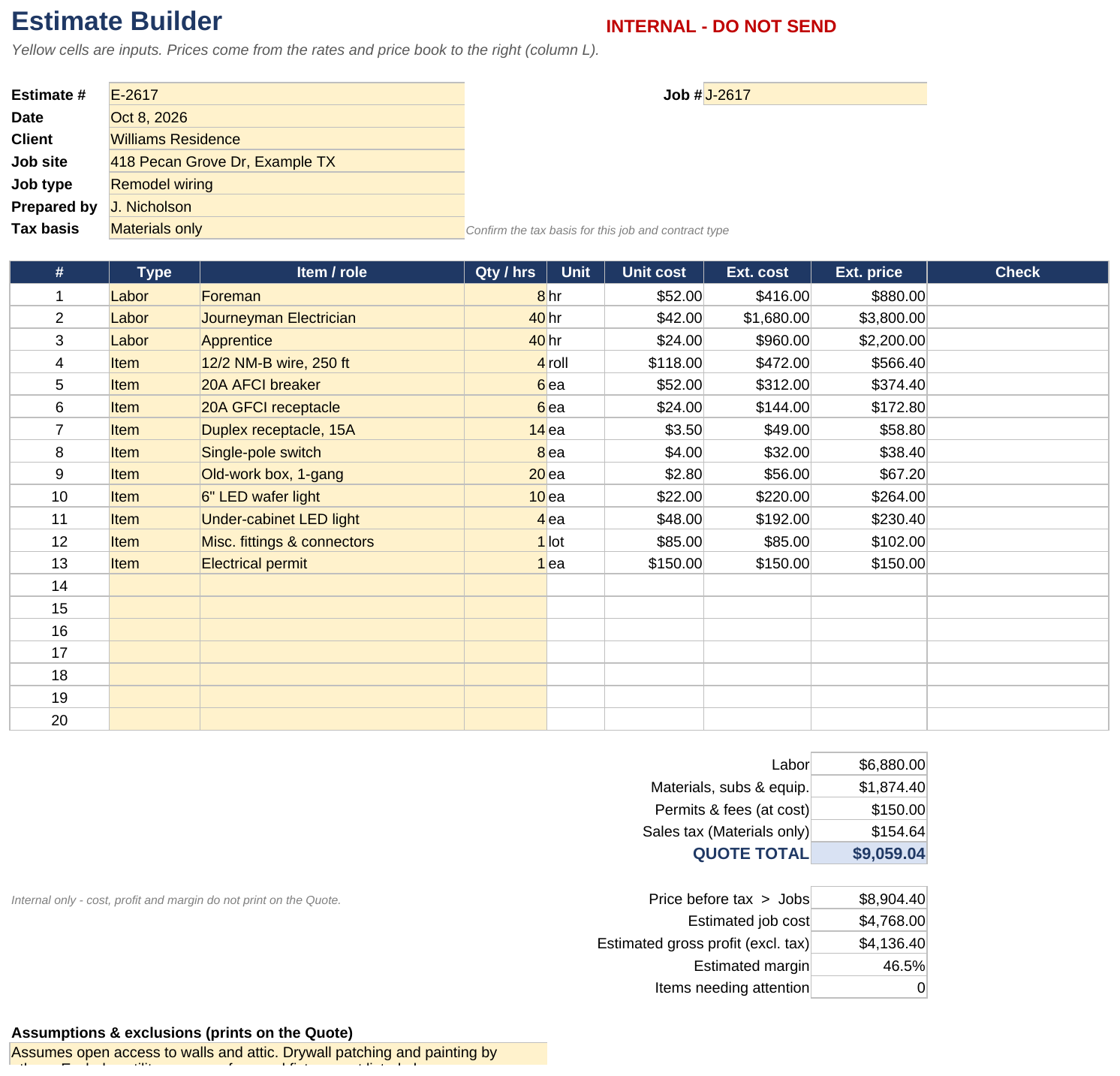
The left side of Estimate holds one estimate at a time. Fill the header, add a line per labor role or item, and the totals and the Quote build themselves. It's marked INTERNAL - DO NOT SEND because it shows your costs.
Fill the header
| Cell | What to enter | SAMPLE |
|---|---|---|
| Estimate # (B4) | Your estimate or quote number | E-2617 |
| Job # (G4) | The job number you'll use on Jobs | J-2617 |
| Date (B5) | The estimate date | Oct 8, 2026 |
| Client (B6) | Client name | Williams Residence |
| Job site (B7) | Address | 418 Pecan Grove Dr, Example TX |
| Job type (B8) | Pick from your Job types | Remodel wiring |
| Prepared by (B9) | Your name (optional) | J. Nicholson |
| Tax basis (B10) | Materials only, Labor + materials, or No tax collected | Materials only |
Tax basis: Materials only taxes material items. Labor + materials also taxes labor, subcontractor and equipment lines. Fee items are never taxed. Confirm the basis for each job and contract type.
Add the lines (rows 13 to 32)
- In Type (column B), pick Labor or Item.
- In Item / role (column C), pick the role or price-book item. The list shows labor roles for Labor and your price book for Item.
- In Qty / hrs (column D), type the hours or quantity.
What you should see: Unit, Unit cost, Ext. cost and Ext. price fill in, and the line's Check cell (column I) stays blank. Up to 20 lines fit.
Read the totals
Under the lines, the totals print on the quote. Below them, the internal lines don't. For E-2617 in the SAMPLE:
| Line | Prints on the Quote? | SAMPLE |
|---|---|---|
| Labor | Yes | $6,880.00 |
| Materials, subs & equip. | Yes | $1,874.40 |
| Permits & fees (at cost) | Yes | $150.00 |
| Sales tax (Materials only) | Yes | $154.64 |
| QUOTE TOTAL | Yes | $9,059.04 |
| Price before tax > Jobs | No; copy it to Jobs | $8,904.40 |
| Estimated job cost | No | $4,768.00 |
| Estimated gross profit (excl. tax) | No | $4,136.40 |
| Estimated margin | No | 46.5% |
| Items needing attention | No | 0 |
Assumptions & exclusions
Type your assumptions and exclusions in the box at the bottom (A47). They print on the quote.
Start the next estimate
Save the quote as PDF first (see Send the quote), and add the job to Jobs. Then type over the header, lines and assumptions for the new job. The workbook keeps one estimate at a time; the PDF is your record of each quote.
Send the quote
The Quote tab is the client-facing copy of the current estimate. It shows prices, never your costs, markup or margin.
- Open Quote and read it over.
- Check there's no DRAFT line under the scope. If you see DRAFT - 1 item(s) need attention on the Estimate tab. Do not send., go back to Estimate and clear the orange Check cells first.
- File → Print, or Save as PDF, and send it to your client. Keep the PDF.
What the quote shows, using E-2617 in the SAMPLE:
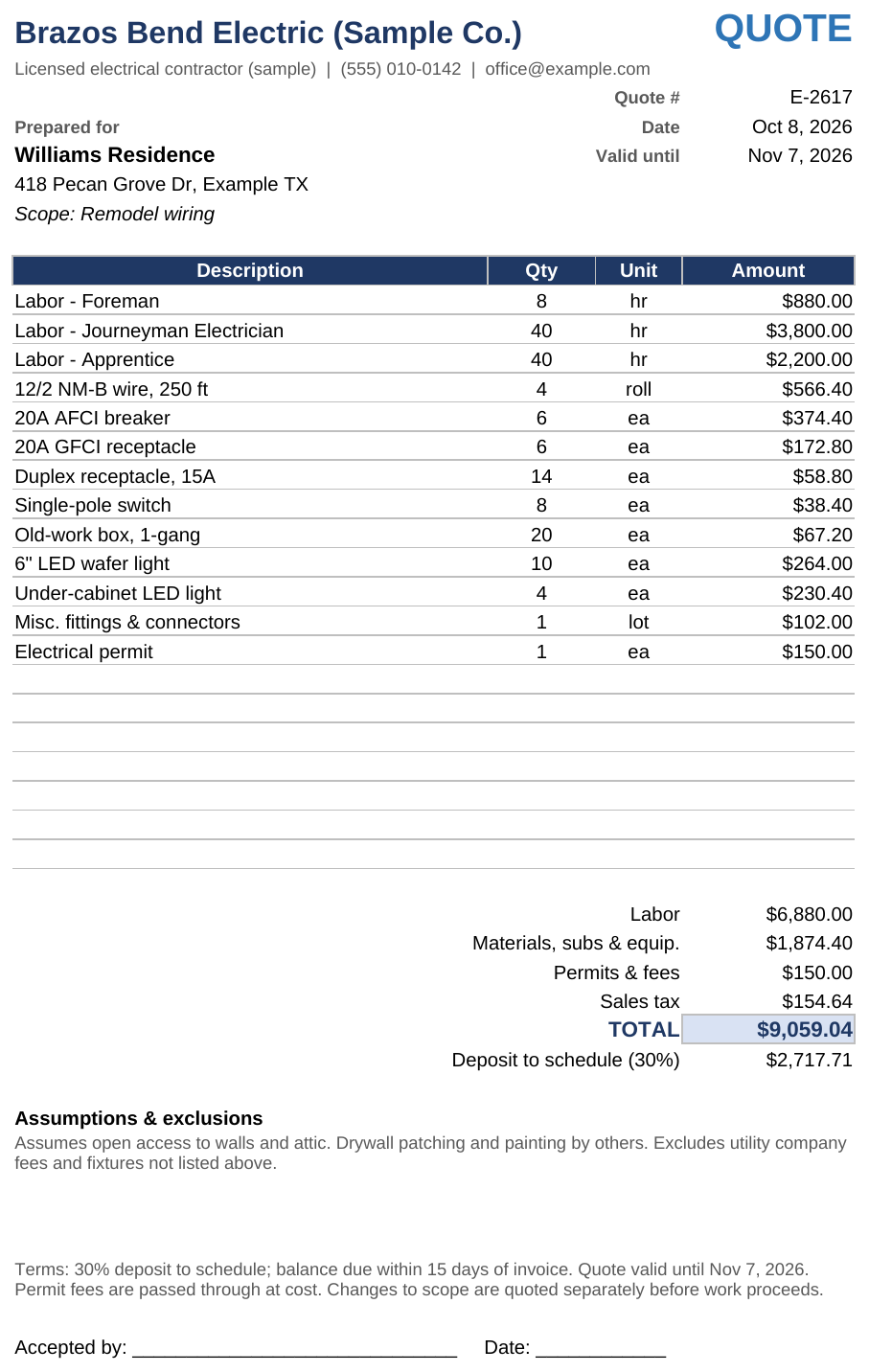
| Part | Comes from | SAMPLE |
|---|---|---|
| Company name and contact line | Quote A1 and A2 | Brazos Bend Electric (Sample Co.) |
| Quote # and Date | Estimate # and Date | E-2617, Oct 8, 2026 |
| Valid until | Date plus Quotes valid for (days) | Nov 7, 2026 |
| Prepared for | Client and Job site | Williams Residence |
| Scope | Job type | Remodel wiring |
| Line items | Your estimate lines; labor shows as "Labor - role" | Labor - Foreman, 8 hr, $880.00 |
| Totals and TOTAL | Estimate totals | $9,059.04 |
| Deposit to schedule | Total times your deposit % | 30%: $2,717.71 |
| Assumptions & exclusions | Estimate A47 | |
| Terms | Written from your deposit, payment days and valid-until date | |
| Accepted by and Date lines | For the client's signature |
The Terms line also says permit fees pass through at cost and that scope changes are quoted separately before work proceeds.
Track the job on Jobs
Add a row on Jobs the day you send a quote. The same row follows the job until it's paid, and the white columns work out cost, profit, due date and balance.
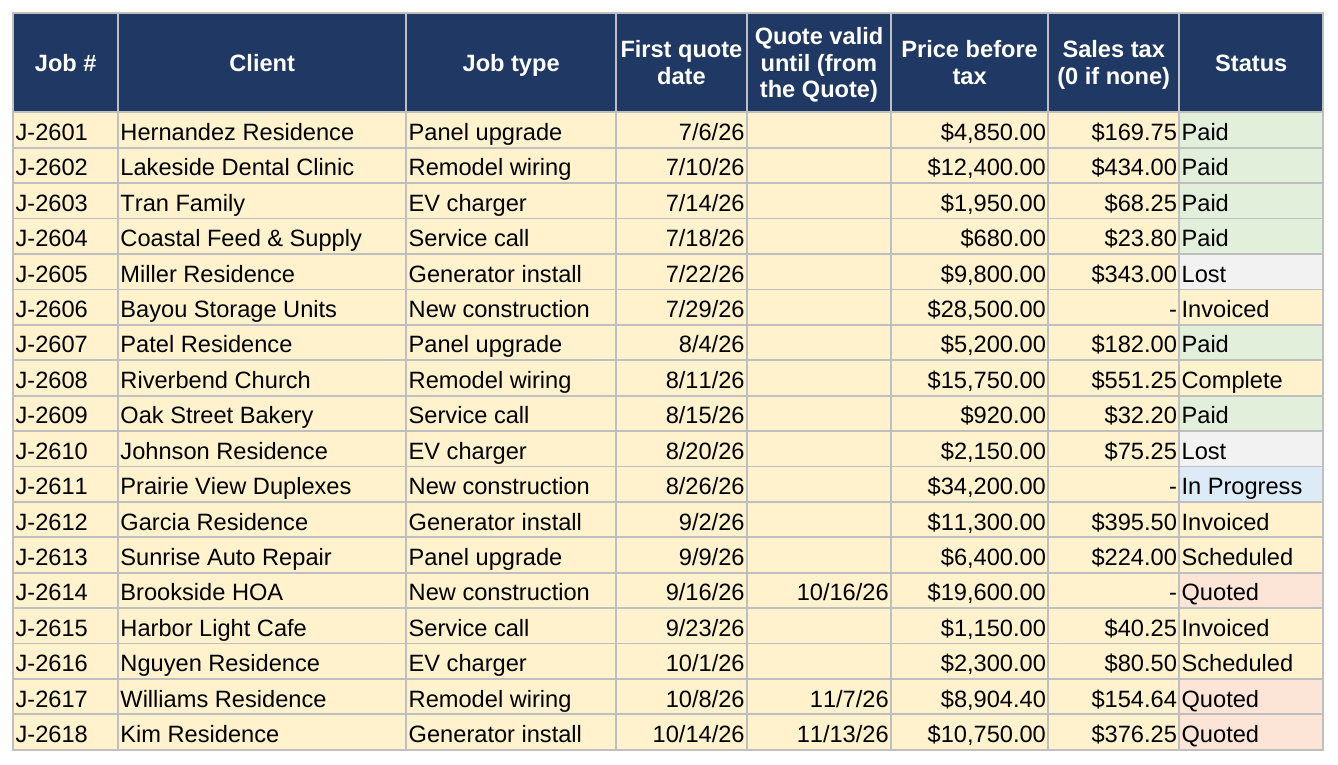
Add the job when you send the quote
- Go to the first empty row on Jobs (rows 5 to 29).
- Fill these columns, pasting the numbers from Estimate and Quote as values:
| Column | What to enter | From |
|---|---|---|
| Job # | Same as on the estimate | Estimate G4 |
| Client | Client name | |
| Job type | Pick from the list | |
| First quote date | The quote date | |
| Quote valid until (from the Quote) | Valid-until date | Quote |
| Price before tax | The price, without tax | Estimate: Price before tax > Jobs |
| Sales tax (0 if none) | The quote's sales tax | Quote: Sales tax |
| Status | Quoted |
To paste as values in Excel: copy the cell, then Home → Paste → Paste Values. A plain paste copies the formula instead of the number.
Move the job through its statuses
| Status | Use it when | Also fill in |
|---|---|---|
| Quoted | The quote is out | |
| Lost | The client said no | |
| Scheduled | The client accepted; work is booked | Start (planned) |
| In Progress | Work has started | Start |
| Complete | Work is done | Complete date, actual costs |
| Invoiced | You've sent the invoice | Invoice date, Payment terms (days) |
| Paid | The balance is zero | Paid date |
Record actual costs
When bills come in, enter Actual labor, Actual material and Other costs (subs, equip., fees). When every bill is in, set Costs final? (Y) to Y. Only jobs marked Y count in the Dashboard's margin figures, so check open sub and supplier bills before you mark it.
What the white columns show
| Column | Shows |
|---|---|
| Actual cost, Gross profit, Margin | Your costs against the price before tax |
| Due date | Invoice date plus payment terms |
| Paid to date, Balance due | Payments logged on Payments for this Job #, and what's left |
| Days to pay | Invoice date to paid date |
| Check (row left out of totals until fixed) | A problem that keeps the row off the Dashboard |
| Reminders | Follow-ups, such as a missing date or a past-due balance |
| In totals | 1 when the row counts on the Dashboard |
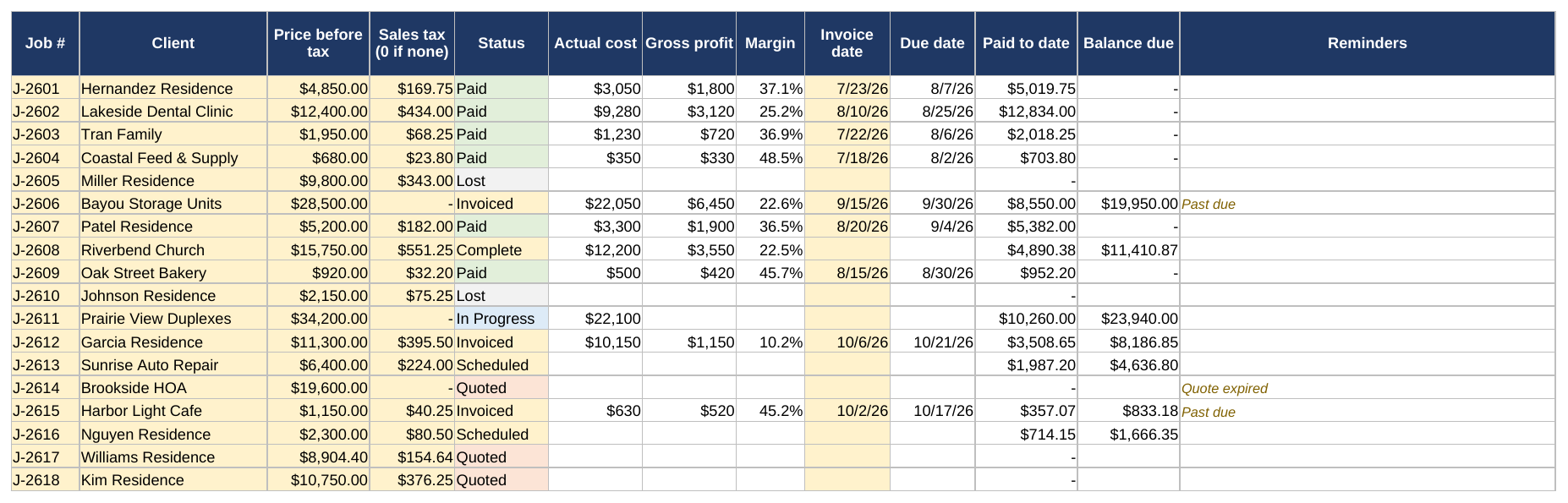
The template edition holds 25 jobs. When it's full, start a fresh copy of the BLANK (for example, one file per year), or ask about a larger edition.
Log payments
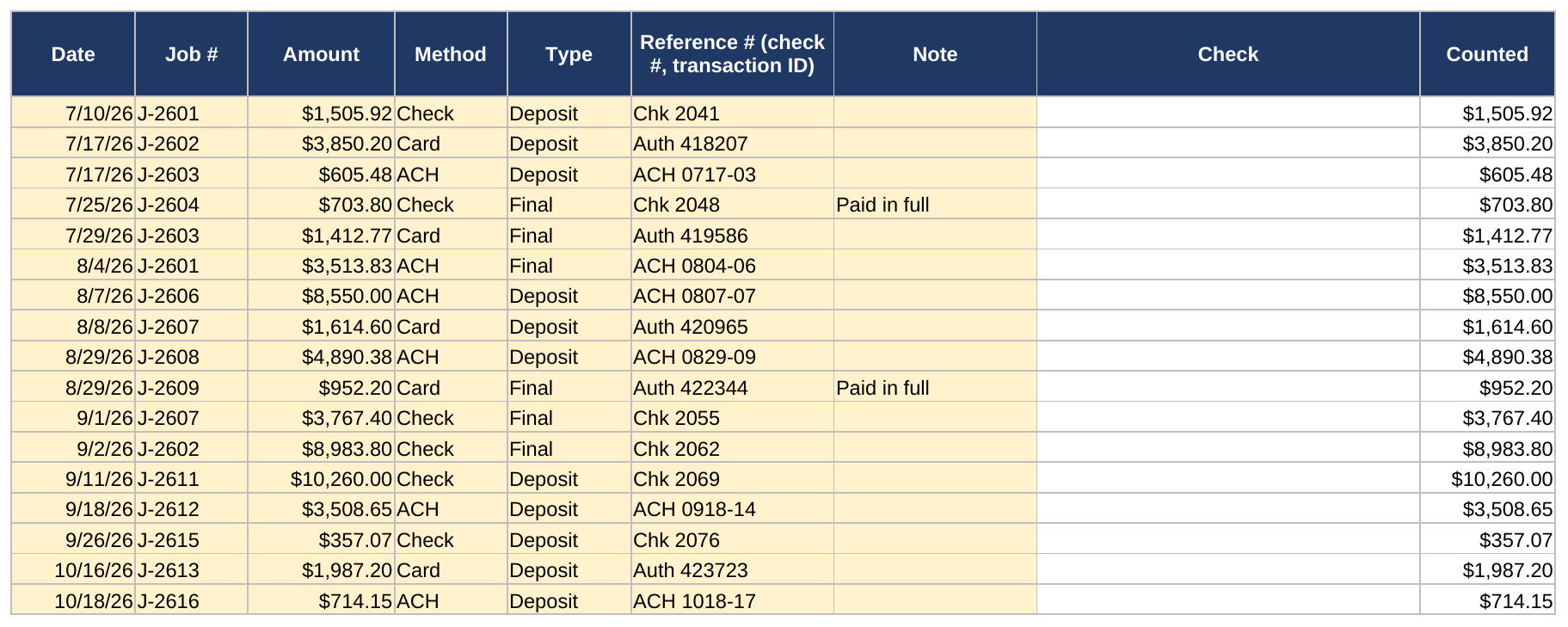
Log every deposit, payment and refund on Payments, one row each, with its check number or transaction ID. Each one updates the job's Paid to date and Balance due on Jobs.
Log a payment
- Make sure the job's status on Jobs is past Quoted. A payment on a Quoted or Lost job is flagged and not counted, so change the job to Scheduled when the deposit comes in.
- Go to the first empty row on Payments (rows 5 to 1004).
- Fill the columns:
| Column | What to enter | Example |
|---|---|---|
| Date | Date received | 10/18/2026 |
| Job # | Pick from the list (it lists Jobs) | J-2616 |
| Amount | Amount received; a refund is negative | 750 |
| Method | Check, ACH, Card, Cash or Other | ACH |
| Type | Deposit, Progress, Final or Refund | Deposit |
| Reference # (check #, transaction ID) | The check number or transaction ID | ACH 1018-17 |
| Note | Anything else (optional) | Paid in full |
What you should see: the row's Check cell stays blank and Counted shows the amount.
Record a refund
Enter the Amount as a negative number and set Type to Refund. A negative amount with any other type is flagged.
Duplicates
The same Job # and Reference # on two rows is treated as a duplicate, even with different spacing or capitals, and the second row isn't counted. Give each payment its real check number or transaction ID.
Read the Dashboard
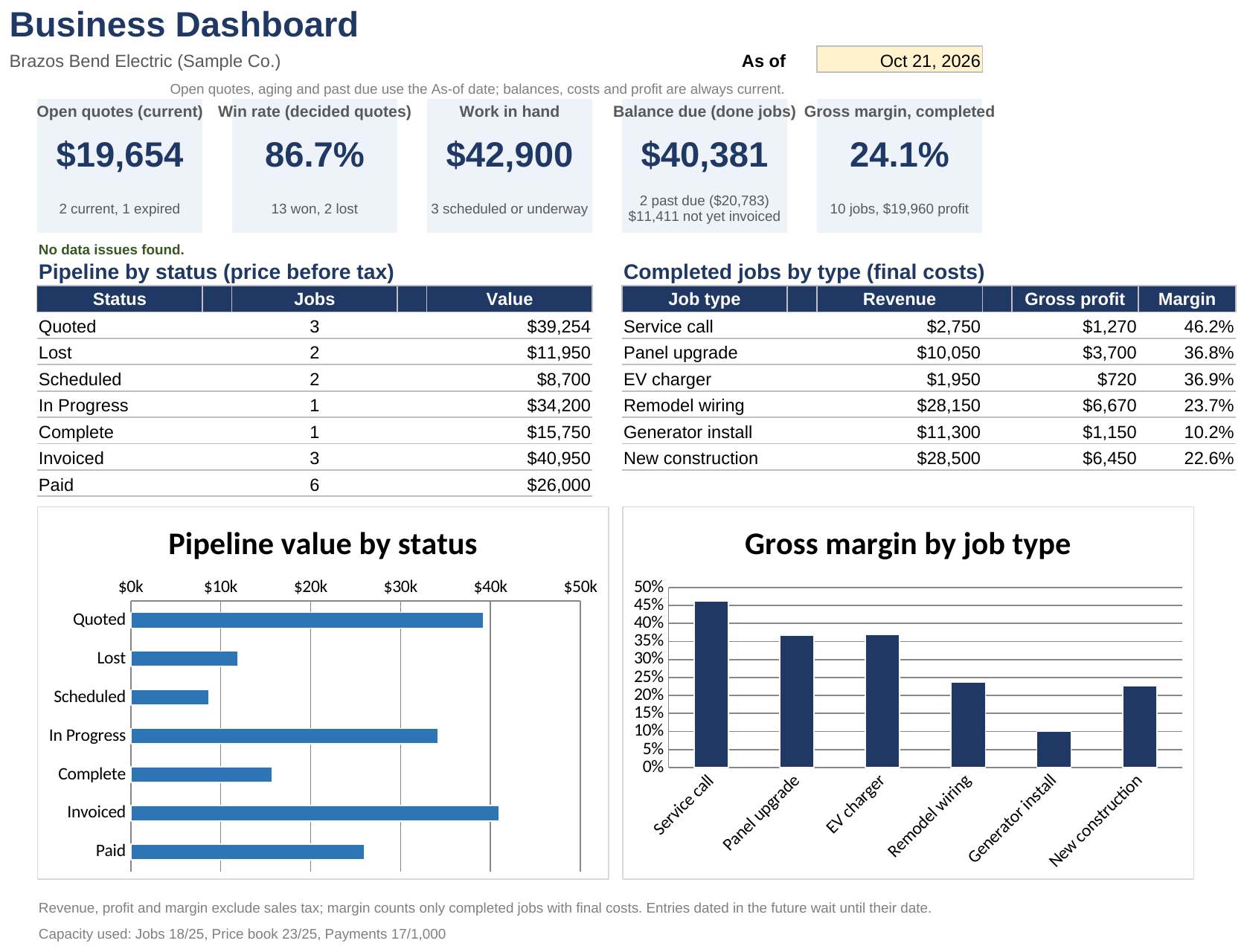
The Dashboard is the one-screen view of the business. Nothing on it is typed except the As of date; it updates from Jobs and Payments.
The five tiles
| Tile | What it counts | SAMPLE |
|---|---|---|
| Open quotes (current) | Quoted jobs still within their valid-until date, before tax | $19,654 (2 current, 1 expired) |
| Win rate (decided quotes) | Jobs won out of jobs won or lost | 86.7% (13 won, 2 lost) |
| Work in hand | Scheduled and In Progress jobs, before tax | $42,900 (3 scheduled or underway) |
| Balance due (done jobs) | Unpaid balances on Complete, Invoiced and Paid jobs | $40,381 (2 past due, $20,783; $11,411 not yet invoiced) |
| Gross margin, completed | Profit over price on jobs with final costs | 24.1% (10 jobs, $19,960 profit) |
The line under the tiles lists any data issues with their dollar amounts, or says No data issues found. Below that, Pipeline by status and Completed jobs by type break the numbers down, each with a chart.
Revenue, profit and margin exclude sales tax. Margin counts only completed jobs with Costs final? (Y) set to Y.
The As of date (J2)
The As of date decides which quotes have expired and which invoices are past due. In the BLANK it's set to =TODAY(), so it always shows today; keep it that way for everyday use. The SAMPLE is fixed at Oct 21, 2026 so its figures stay the same.
The As of date only moves expiry and aging. Statuses, costs and payments are always current, so setting an earlier date doesn't give you a report as of that day.
Capacity
The last line shows Capacity used, for example Jobs 18/25, Price book 23/25, Payments 17/1,000.
Walk through the SAMPLE
Follow one job from estimate to deposit. Use the SAMPLE file; nothing you change there touches your own work.
E-2617 is a remodel wiring job for Williams Residence. It's been estimated, quoted and added to Jobs, and the client is about to say yes.
- Open Estimate. E-2617 has 3 labor lines and 10 price-book items, and its QUOTE TOTAL is $9,059.04 (see the screenshot under Add the lines).
- Open Quote. It's valid until Nov 7, 2026 and asks for a 30% deposit of $2,717.71. This is the page you'd save as PDF and send.
- Open Jobs and find J-2617 in row 21. It was added when the quote went out: Price before tax $8,904.40, Sales tax $154.64, Status Quoted.

- The client accepts and mails a deposit check. In row 21, change Status to Scheduled and type 11/2/2026 in Start as the planned start.
- Open Payments and go to the first empty row (row 22). Enter Date 10/20/2026, Job # J-2617, Amount 2717.71, Method Check, Type Deposit and Reference # Chk 1150.
What you should see: the row's Check cell stays blank and Counted shows $2,717.71.

- Go back to Jobs.
What you should see: J-2617 shows Paid to date $2,717.71 and Balance due $6,341.33, the quote total less the deposit.

- Open Dashboard.
What you should see: Open quotes (current) drops from $19,654 to $10,750, Win rate rises from 86.7% to 87.5% (14 won, 2 lost), and Work in hand rises from $42,900 to $51,804 (4 scheduled or underway). Balance due (done jobs) stays at $40,381, because it counts only Complete, Invoiced and Paid jobs.
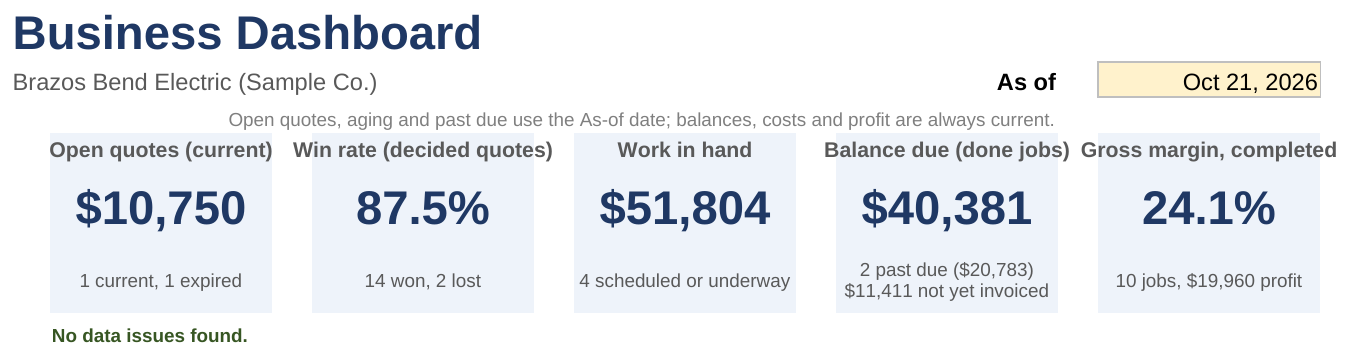
That's the whole cycle for one job: estimate, quote, a Jobs row as Quoted, then Scheduled with a deposit on Payments. To put the SAMPLE back, close it without saving.
When a cell turns orange
A message in a Check column means something on that row needs correcting. On Estimate, any flag keeps the Quote marked DRAFT. On Jobs and Payments, a flagged row is left out of the totals until it's fixed. Reminders on Jobs are follow-ups; the row still counts.
Estimate: header (column I)
| Message | How to fix it |
|---|---|
| Enter an estimate # | Type it in B4 |
| Enter the Job # (G4) | Type the job number in G4 |
| Enter the estimate date | Type a date in B5 |
| Enter the client / Enter the job site | Fill B6 or B7 |
| Pick a job type | Pick one in B8 |
| Pick a tax basis | Pick one in B10 |
| Set a sales tax rate in the rates | The tax basis charges tax but Sales tax rate is empty or 0; set it, or pick No tax collected |
| Fix the rate settings | A setting or labor rate on the right is flagged; see the next tables |
Estimate: lines (column I)
| Message | How to fix it |
|---|---|
| Pick an item | Pick the role or item in column C |
| Type must be Labor or Item | Pick Labor or Item in column B |
| Enter qty/hrs | Type a quantity or hours above zero |
| Not in labor rates | That role isn't in Labor rates; re-pick it or add it |
| Fix this role in the rates | The role's rates are flagged; fix that row |
| Not in price book | That item isn't in the Price book; re-pick it or add it |
| Fix this item in the price book | The item's price-book row is flagged; fix that row |
| Add at least one line | The estimate has no lines yet |
Estimate: settings, labor rates and price book (column Q)
| Message | How to fix it |
|---|---|
| Enter a markup from 0% to 200% | Type a markup in that range |
| Enter a tax rate from 0% to 20% | Type a rate in that range (8.25% = 0.0825) |
| Enter whole days, 1 or more / Enter whole days, 0 or more | Type a whole number of days |
| Enter a deposit from 0% to 100% | Type a deposit in that range |
| Enter a role name / Enter a bill rate / Enter a cost rate | Fill the missing part of that labor role |
| Duplicate role | Two roles share a name; rename one |
| Enter an item name / Enter a unit / Enter a unit cost above $0 | Fill the missing part of that item |
| Duplicate item name | Two items share a name; rename one |
| Pick a category from the list | Pick a category |
| Waste must be 0% to 50% | Type a waste % in that range |
| Waste applies to material items only | Clear the waste % on a Subcontractor, Equipment or Fee item |
Jobs: Check (column Y)
| Message | How to fix it |
|---|---|
| Job # missing / Remove extra spaces from Job # / Duplicate Job # | Give the row a unique Job # with no spaces at either end |
| Enter the client / Pick a status / Pick a job type | Fill that column |
| Missing quote date / Quote date is in the future | Correct First quote date |
| Enter price before tax / Enter sales tax (0 if none) | Paste them from the estimate |
| Enter valid until (from the Quote) | A Quoted job needs its valid-until date |
| Payment terms must be whole days | Type a whole number |
| Refunds exceed payments / Overpaid | Check that job's rows on Payments |
Jobs: Reminders (column Z)
| Reminder | What to do |
|---|---|
| Quote expired | Follow up, or mark the job Lost |
| Missing start date / Missing complete date / Missing invoice date / Missing paid date | Fill the date for the job's status |
| Complete date before start / Invoice date before complete / Paid date before invoice | Correct the dates |
| Enter final costs, mark Y | Enter actual costs, then Costs final? (Y) = Y |
| Costs final before work done / Costs marked final but none entered | Clear the Y, or enter the costs |
| Costs must be numbers - profit on hold / Net cost in a category is below $0 - profit on hold | Fix the cost columns |
| Enter payment terms (no due date yet) | Fill Payment terms (days) |
| Marked Paid, balance due | Log the missing payment, or change the status |
| Payment flagged on Payments tab | Fix that job's flagged row on Payments |
| Past due | Follow up on the invoice |
Payments: Check (column H)
| Message | How to fix it |
|---|---|
| Date, job and amount needed / Date must be a date / Amount must be a number | Fill or correct those columns |
| Job # not on Jobs tab / Job # is duplicated on Jobs | Pick the Job # from the list; fix duplicates on Jobs |
| Pick a method / Pick a type | Pick from the list |
| Enter the check # or transaction ID | Fill Reference # |
| Duplicate: same job and reference above | This payment is already logged; clear the row's yellow cells, or correct the reference |
| Refund must be a negative amount / Negative amount: set Type to Refund | A refund is a negative amount with Type = Refund |
| Job is Quoted/Lost - update its status | Change the job's status on Jobs |
| Dated before the quote date | Correct the date |
| Dated in the future; not counted yet | Nothing to fix; it counts from its date |
Google Sheets edition
The Google Sheets edition works the same as the Excel file. You get it from the PDF in your download, which saves your own private copy to Google Drive.
Make your copy
- Open Contractor_Estimate_Template_GOOGLE_SHEETS_links.pdf from your Etsy download.
- Sign in to your Google account in your browser.
- Click Make my copy under BLANK workbook (or SAMPLE workbook to explore first).
- Google asks Would you like to make a copy? Click Make a copy.
What you should see: the workbook opens in Google Sheets, named "Copy of Contractor Estimate to Job Tracker - BLANK (Google Sheets)", in your own Drive; rename it as you like. Nothing you type is shared with the shop. If a button doesn't open, the PDF also lists both addresses to paste into your browser.
Working in Sheets
- Estimate lines: pick Labor or Item in column B, then the role or price-book item in column C.
- Protected cells: formula cells are protected with a warning. If Google Sheets warns that you're editing a protected cell, click Cancel unless you really mean to change a formula. As the owner of your copy, you can remove the warning under Data → Protect sheets and ranges.
- Computer, not phone: use any web browser with a free Google account. The Google Sheets phone app is fine for viewing; build estimates on a computer.
- Paste as values: when copying the price to Jobs, use Edit → Paste special → Values only.
Time zone: go to File → Settings in your copy and pick your time zone. The As of date and the future-date checks use today's date, so the time zone needs to be yours.
Print the quote
Open Quote, then File → Print (or File → Download → PDF). Set the paper to Letter and check the preview.
Questions and limits
How many jobs and items does it hold? The template edition holds 25 jobs (Jobs rows 5 to 29), 25 price-book items (Estimate rows 19 to 43), 3 labor roles, 20 estimate lines and 1,000 payments. Grey rows are outside the template. When it fills, start a fresh copy of the BLANK; one file per year works well. Larger editions are paid custom work; message the shop on Etsy.
Can I keep several estimates? The Estimate tab holds one at a time. Save each quote as PDF, add the job to Jobs, then type the next estimate over it.
Can I invoice in stages? Payments can be split into deposit, progress and final payments, but aging uses one invoice per job: the job's Invoice date plus its Payment terms (days). Progress invoices aren't aged separately.
Can I change the layout or a formula? In Excel, use Review → Unprotect Sheet (no password), make the change, then protect the sheet again. Changes to formulas are at your own risk.
How do I print only filled rows on Jobs? Filter the first column to hide blanks; Excel skips filtered-out rows. Jobs prints with Job # and Client repeated on each page.
Does it work on a Mac? Yes: desktop Microsoft Excel or Microsoft 365, on Windows or Mac. It also works in free Excel for the web and Google Sheets. No macros.
Is the sales tax right for my state? The workbook applies the rate and basis you choose. Tax rules differ by job, contract type and location; confirm the basis with your CPA or your state's tax office.
I opened the SAMPLE and it says Brazos Bend Electric. That's the fictional sample company. Use the BLANK for your own work.
Still stuck? Message the shop on Etsy with the tab, the row and what you expected to see.