Change Order Log User Guide
Find your question, then follow the steps: which tab to open, which cell to type in, and what you should see when it worked. Words in bold are the exact tab, column or button names in the workbook.
Published by PoshJosh LLC · Updated October 27, 2026
About this guide
This guide is for Change Order Log v1.2, in Excel (Windows, Mac or Excel for the web) and Google Sheets. The version is in the file name, for example Change_Order_Log_TEMPLATE_v1.2_BLANK.xlsx.
Color key, on every tab
| Color | What it means |
|---|---|
| Yellow | Inputs. Type here or pick from a dropdown. |
| White | Formulas. They calculate on their own; don't type over them. |
| Orange | Something on that row needs your attention. The Check column says what. |
Your two files. The SAMPLE is filled with a fictional electrical contractor, Brazos Bend Electric, so you can see every feature working. The BLANK is empty and ready for your business. Try things in the SAMPLE; keep your real work in the BLANK.
Need help? Message the shop on Etsy. Say which tab and row you were on, what you typed, and what you expected to see.
This is a recordkeeping tool, not legal advice. Your contract and your state's law decide what a valid change order needs.
Getting around
The workbook has six tabs along the bottom. You type on three of them (Settings, Jobs, Change Orders) and pick one cell on a fourth (Change Order Form). Everything else calculates.
| Tab | What lives there | You type here? |
|---|---|---|
| Start Here | Quick instructions, color key, capacity and notes | No |
| Summary | Totals across all jobs, pending and rejected change orders, approved changes by reason, rows needing attention | No |
| Jobs | One row per job: original contract, dates, and the revised contract and completion date | Yes, columns A to G |
| Change Orders | One row per change order: price, tax, days, status and approval reference | Yes, columns A to J |
| Change Order Form | A one-page change order for the client to sign, built from the CO # you pick | Only cell C6 |
| Settings | Your business details, the terms printed on the form, the Status and Reason lists | Yes |
On Jobs and Change Orders, the header row and the first column stay in place as you scroll. Each header has a filter arrow for sorting and filtering.
How do I…?
The short path for each common task. The section in the last column has the full steps.
| How do I… | Short path | Section |
|---|---|---|
| Put my business name on the form | Settings → C4 to C7 | First-time setup |
| Change the terms printed on the form | Settings → the Terms printed on the form box | First-time setup |
| Add my own change order reasons | Settings → Reason (editable) column | First-time setup |
| Add a job | Jobs → next empty row → columns A to G | Jobs |
| Log a change order | Change Orders → next empty row → columns A to J | Change orders |
| Enter a credit | Change Orders → a negative Price change | Change orders |
| Print a change order for signature | Change Order Form → pick the CO # in C6 → File → Print | Print a change order |
| Mark a change order approved | Change Orders → Status = Approved and fill Approval reference | Change orders |
| See a job's new contract total and finish date | Jobs → Revised contract total and Revised completion | Jobs |
| See totals for all jobs | Summary | Summary |
| Fix an orange cell | Read the Check column on that row | When a cell turns orange |
| Start a new file when this one is full | Make a fresh copy of the BLANK | When a file fills up |
| See one change order go from flagged to counted | SAMPLE → CO-2611-3 → add the approval reference | Walk through the SAMPLE |
No match. Try a shorter word, or message the shop on Etsy.
First-time setup
Setup takes about five minutes: open the BLANK, fill in Settings, and save.
Open the right file
- In Excel on Windows or Mac, open Change_Order_Log_TEMPLATE_v1.2_BLANK.xlsx. For Google Sheets, see Google Sheets edition below.
- If a yellow bar says Protected View, click Enable Editing. The numbers show either way, but dropdowns only work once editing is on.
- Save it under your own name, for example Change Orders 2026.xlsx.
For Excel for the web, upload the file to your OneDrive first, then open it from there.
Fill in Settings
- Open the Settings tab.
- Type your Business name (C4), Phone (C5), Email (C6), and Address / license # (C7). These print at the top of every change order form.
- Read the Terms printed on the form box (C8). It already has standard wording; change it to match your contract, or leave it.
- Check the Reason (editable) list in column F. Rename or add reasons there, up to 10.
What you should see: open Change Order Form, and your business name and contact line are at the top.

Set up your reasons before you log change orders. If you rename a reason later, rows already using the old name drop out of the Approved change orders by reason table on Summary until you re-pick them.
The Status list (Pending, Approved, Rejected) is fixed, because the totals depend on those exact words.
Jobs
Enter each job once, with its original signed contract. The white columns then keep the revised contract and completion date up to date as change orders are approved.
Add a job
- Open Jobs and go to the first empty row (rows 5 to 54).
- Fill the yellow columns:
| Column | What to enter | Example |
|---|---|---|
| A Job # | Your own job number. Each one must be unique. | J-2611 |
| B Client | Client or owner name | Hollis Townhomes HOA |
| C Job name / address | What you'll recognize the job by | Garage panels, 210 Hollis Ln |
| D Original contract (before tax) | The signed contract price, before sales tax | 18,400 |
| E Original sales tax (0 if none) | Tax on the original contract, in dollars | 0 |
| F Start | Start date | 9/28/2026 |
| G Original completion | Completion date in the contract | 10/30/2026 |
What you should see: the job's Check cell (column Q) stays blank, and the Job # now appears in the Job # dropdown on Change Orders.

What the white columns mean
| Column | Shows |
|---|---|
| Approved changes (before tax) and Approved tax change | The total of this job's counted change orders |
| Revised contract (before tax), Revised sales tax, Revised contract total | Original plus approved changes |
| Days added and Revised completion | Approved days added, and the original completion date moved by them |
| Pending COs and Pending price change | Change orders still waiting on a signature; not in the totals |
A change order counts only when its Status is Approved, it has an Approval reference, and its Check cell is blank. A verbal OK never changes the totals.
Remove a job
Clear its yellow cells (A to G) instead of deleting the row. Any change orders that used that Job # will turn orange with Job # not on Jobs tab until you clear or change them too.
Change orders
Log every change order the day it comes up, as Pending. It moves into the contract only when you mark it Approved and record how it was approved.
Log a change order
- Open Change Orders and go to the first empty row (rows 5 to 204).
- Fill the yellow columns:
| Column | What to enter | Example |
|---|---|---|
| A CO # | Your change order number. Each one must be unique. | CO-2611-2 |
| B Job # | Pick from the dropdown (it lists the Jobs tab) | J-2611 |
| C Date | The date of the change | 10/12/2026 |
| D Description | What is changing, in a few words | Replace corroded meter base at unit 7 |
| E Reason | Pick from the dropdown (your list on Settings) | Hidden or unforeseen condition |
| F Price change (before tax) | Dollars added; a credit is negative | 1,240 |
| G Sales tax change | Tax on this change, in dollars; 0 if none | 0 |
| H Days added | Whole calendar days; negative shortens the schedule | 2 |
| I Status | Pending, Approved or Rejected | Pending |
| J Approval reference (signed CO, email) | How it was approved: signed CO, email, text | Signed CO on file 10/13 |
A numbering habit that works: CO-, the job number, then a count for that job (CO-2611-1, CO-2611-2).
What you should see: the Check cell (column K) stays blank. If it turns orange, see When a cell turns orange.

Enter a credit
Type the price change as a negative number, for example -1,150, and the tax change as a negative too. It lowers the revised contract once approved.
Move a change order from Pending to Approved
- Print the form and get it signed (see Print a change order for signature).
- On Change Orders, set Status to Approved.
- Type the Approval reference, for example Signed CO on file 10/13.
What you should see: on Jobs, that job's Revised contract total and Revised completion change, and Pending COs drops by one.
Approved with no reference turns the row orange and leaves it out of the totals. An Approved change order dated after today is also left out until its date arrives.
Rejected change orders
Set Status to Rejected and keep the row. It stays on record and shows in the Rejected lines on Summary, but never changes the contract.
Print a change order for signature
Pick a CO # and the Change Order Form fills itself: one Letter page, ready to print or save as PDF and send before the extra work starts.
- Log the change order on Change Orders first, usually as Pending.
- Open Change Order Form.
- Click the yellow cell C6 and pick the CO # from the dropdown.
- Read the grey Status note to the right of the form. It doesn't print.
- File → Print, or Save as PDF, and send it to your client.
What you should see on the form, using CO-2611-2 in the SAMPLE:
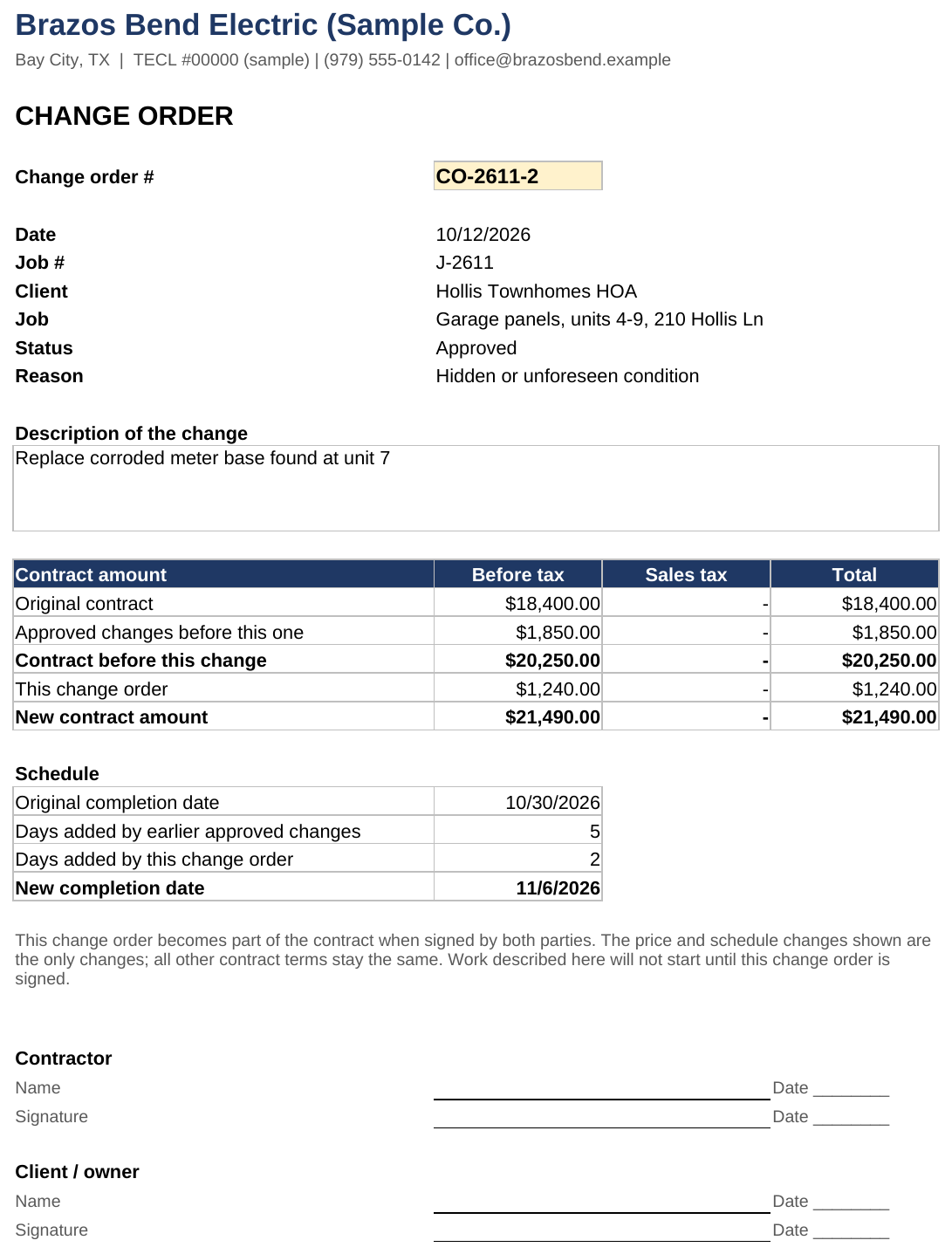
| Contract amount | Before tax | Sales tax | Total |
|---|---|---|---|
| Original contract | $18,400.00 | $0.00 | $18,400.00 |
| Approved changes before this one | $1,850.00 | $0.00 | $1,850.00 |
| Contract before this change | $20,250.00 | $0.00 | $20,250.00 |
| This change order | $1,240.00 | $0.00 | $1,240.00 |
| New contract amount | $21,490.00 | $0.00 | $21,490.00 |
Below that, the Schedule box shows the original completion date, days added by earlier approved changes, days added by this one, and the New completion date (Nov 6, 2026 in the SAMPLE). Signature and date lines for you and the client are at the bottom, with your terms from Settings above them.
What the Status note means
| Status note | What to do |
|---|---|
| Pick a change order # in C6 | Pick one from the dropdown |
| That CO # is not on the Change Orders tab (in red) | Re-pick it; it may have been renamed |
| Check: … (in red) | Fix that row on Change Orders first |
| Pending: send this form for signature; not counted until Approved | Print and send it |
| Approved: counted in the contract on the Jobs tab | Nothing; this is your record copy |
| Rejected: not counted | Nothing |
Approved changes before this one counts approved change orders on the same job with an earlier date. Two on the same date count in row order on Change Orders, so log them in the order they happened.
Summary
Summary is the one-screen check across every job. Nothing on it is typed; it updates as you work.
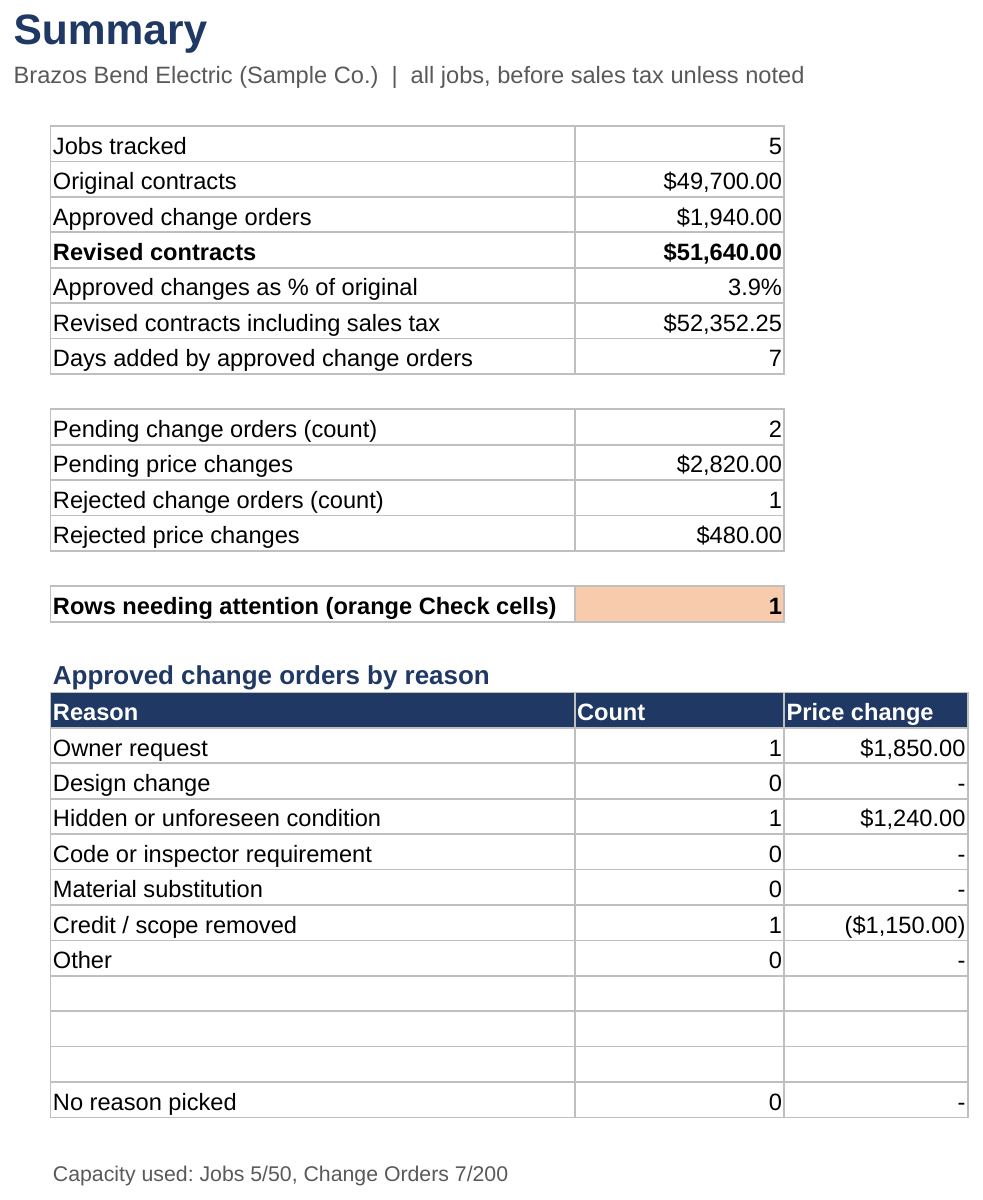
| Line | What it tells you | SAMPLE |
|---|---|---|
| Jobs tracked | Jobs with a Job # | 5 |
| Original contracts | Total of the signed contracts, before tax | $49,700 |
| Approved change orders | Total counted change orders, before tax | $1,940 |
| Revised contracts | Original plus approved | $51,640 |
| Approved changes as % of original | How much change orders grew the work | 3.9% |
| Revised contracts including sales tax | The total including tax | $52,352.25 |
| Days added by approved change orders | Total schedule days added | 7 |
| Pending change orders (count) and Pending price changes | Waiting on a signature; not counted | 2, $2,820 |
| Rejected change orders (count) and Rejected price changes | On record; not counted | 1, $480 |
| Rows needing attention (orange Check cells) | Orange Check cells on Jobs and Change Orders | 1 |
Below that, Approved change orders by reason shows the count and dollars for each reason on your Settings list. No reason picked catches counted rows with the Reason left blank.
The last line shows Capacity used, for example Jobs 5/50, Change Orders 7/200.
When Rows needing attention is above 0, its cell turns orange. Filter the Check column on Jobs or Change Orders to find those rows.
Walk through the SAMPLE
Follow one change order from flagged to counted. Use the SAMPLE file; nothing you change there touches your own work.
CO-2611-3 is the feeder upsize on job J-2611, Hollis Townhomes HOA: $960.00 and 1 day added. Its Status is Approved, but nobody recorded how it was approved, so its Check cell is orange and it's left out of every total. You can see it in the last row of the Change Orders screenshot under Log a change order.
- Open Change Orders and find CO-2611-3 in row 11. Its Check cell (column K) reads Enter the approval reference.
- Click J11, the Approval reference cell, type Signed CO on file 10/22, and press Enter.
What you should see: the Check cell goes blank and the orange is gone.

- Open Jobs and look at J-2611 in row 5.
What you should see: Approved changes (before tax) goes from $3,090.00 to $4,050.00, Revised contract total from $21,490.00 to $22,450.00, Days added from 7 to 8, and Revised completion from 11/6/2026 to 11/7/2026.

- Open Summary.
What you should see: Approved change orders goes from $1,940.00 to $2,900.00, Revised contracts from $51,640.00 to $52,600.00, Approved changes as % of original from 3.9% to 5.8%, Days added by approved change orders from 7 to 8, and Rows needing attention from 1 to 0.
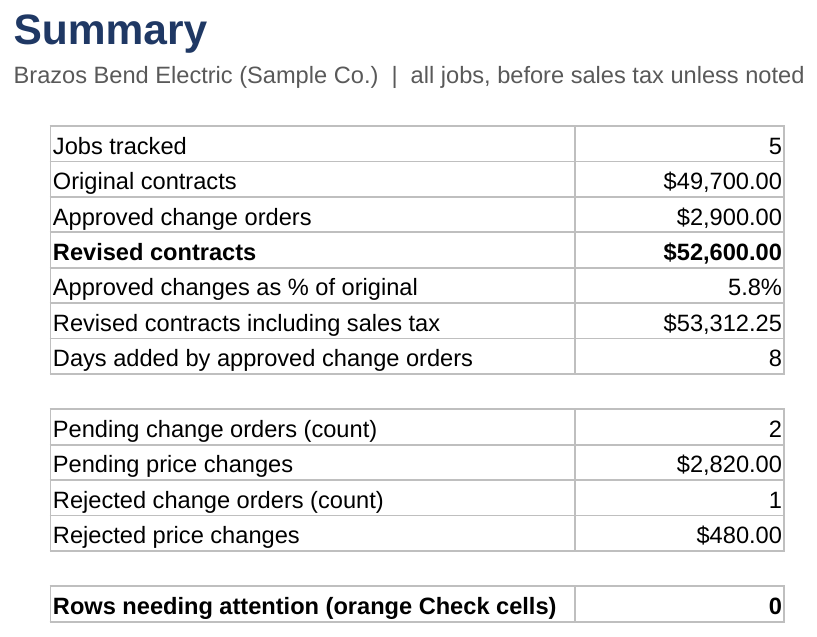
That's the whole rule in one record: a change order changes the contract only when it's Approved, has an approval reference, and its Check cell is blank. To put the SAMPLE back, clear J11 or close the file without saving.
When a cell turns orange
An orange Check cell means something on that row needs correcting, and the message says what. On Change Orders, an orange row is left out of the totals and counts again as soon as the cell goes blank.
On Change Orders (column K)
| Check message | How to fix it |
|---|---|
| CO #, job, date and description needed | Fill in all four on that row |
| Remove extra spaces from the CO # | Retype the CO # without a space at the start or end |
| Job # not on Jobs tab | Pick the Job # from the dropdown, or add the job on Jobs first |
| Job # is duplicated on Jobs | Two rows on Jobs share that Job #; give one a new number |
| Duplicate CO # | Another row has the same CO #; renumber one |
| Price change must be a number | Type digits only, no text such as "TBD" |
| Tax change must be a number | Same, in Sales tax change |
| Days added must be whole days | Use a whole number, such as 2 or -1 |
| Enter a price, tax or schedule change | At least one of price, tax or days must be non-zero |
| Pick a status | Pick Pending, Approved or Rejected from the dropdown |
| Enter the approval reference | It's Approved; record how, for example "Signed CO on file 10/13" |
| Dated in the future; not counted yet | Nothing to fix; it counts from its date. Correct the date if it was a typo |
On Jobs (column Q)
| Check message | How to fix it |
|---|---|
| Job # needed | Type a Job # in column A |
| Remove extra spaces from the Job # | Retype it without a space at the start or end |
| Duplicate Job # | Another row has the same Job #; renumber one |
| Original contract must be a number | Type digits only in column D |
| Sales tax must be a number | Type digits only in column E, or 0 |
| Start must be a date / Completion must be a date | Type a date, such as 10/30/2026 |
| Completion is before start | Correct one of the two dates |
When a file fills up, or a new year starts
Each file holds 50 jobs (Jobs rows 5 to 54) and 200 change orders (Change Orders rows 5 to 204). When either fills, start a fresh copy of the BLANK. One file per year works well for most shops.
Rows typed below those ranges aren't counted, don't show in dropdowns, and never reach the form or Summary. Watch Capacity used at the bottom of Summary.
Start a new file
- Make a fresh copy of the BLANK you downloaded (Excel), or use the BLANK Make my copy button again (Google Sheets).
- Copy your Settings over: business details, terms and your Reason list.
- Add new jobs in the new file from here on.
A job's change orders must live in the same file as the job, because the Job # dropdown and the totals only see that file's Jobs tab. Keep logging change orders for older jobs in the old file until those jobs are closed.
Need more than 50 jobs or 200 change orders in one file? A larger edition is paid custom work. Message the shop on Etsy.
Google Sheets edition
The Google Sheets edition works the same as the Excel file. You get it from the PDF in your download, which saves your own private copy to Google Drive.
Make your copy
- Open Change_Order_Log_GOOGLE_SHEETS_links.pdf from your Etsy download.
- Sign in to your Google account in your browser.
- Click Make my copy under BLANK workbook (or SAMPLE workbook to explore first).
- Google asks Would you like to make a copy? Click Make a copy.
What you should see: the workbook opens in Google Sheets, named "Copy of Change Order Log - BLANK (Google Sheets)", in your own Drive; rename it as you like. Nothing you type is shared with the shop. If a button doesn't open, the PDF also lists both addresses to paste into your browser.
Set your time zone
Go to File → Settings in your copy and pick your time zone. The workbook uses today's date to hold back change orders dated in the future, so the time zone needs to be yours.
Protected cells
Formula cells are protected with a warning. If Google Sheets warns that you're editing a protected cell, click Cancel unless you really mean to change a formula. The warning only guards against accidents; as the owner of your copy, you can remove it under Data → Protect sheets and ranges.
Print the form
Open Change Order Form, pick the CO # in C6, then File → Print (or File → Download → PDF). Set the paper to Letter and check the preview shows one page.
Questions and limits
Can I change the layout or a formula? In Excel, use Review → Unprotect Sheet (no password), make the change, then protect the sheet again. In Google Sheets, see Protected cells above. Changes to formulas are at your own risk.
Does it work on a Mac? Yes: Excel 2019 or newer for Mac, or Microsoft 365. It also works in free Excel for the web and Google Sheets.
Do I need macros? No. The workbook has none.
Does it work out sales tax? No. Enter the tax change on each change order yourself; tax rules depend on the job, contract type and location. The workbook adds up what you enter.
Are days added business days? No, calendar days, added to the original completion date. A negative number shortens the schedule.
Does a signed form in this workbook make a change order legally valid? The workbook keeps the record and prints the form. Your contract and your state's law decide what a valid change order needs, so have your contract language reviewed.
I opened the SAMPLE and it says Brazos Bend Electric. That's the fictional sample company. Use the BLANK for your own work, or type over the sample.
Still stuck? Message the shop on Etsy with the tab, the row and what you expected to see.